
What is Aspect Ratio and How to Change It: A Complete Guide
Have you ever uploaded a photo to social media only to find it cropped awkwardly? Or tried to print an image that came out stretched or distorted? These issues often stem from incorrect aspect ratios. In this comprehensive guide, we'll explain what aspect ratio is, why it matters, and how to change it using our free Aspect Ratio Changer Tool.
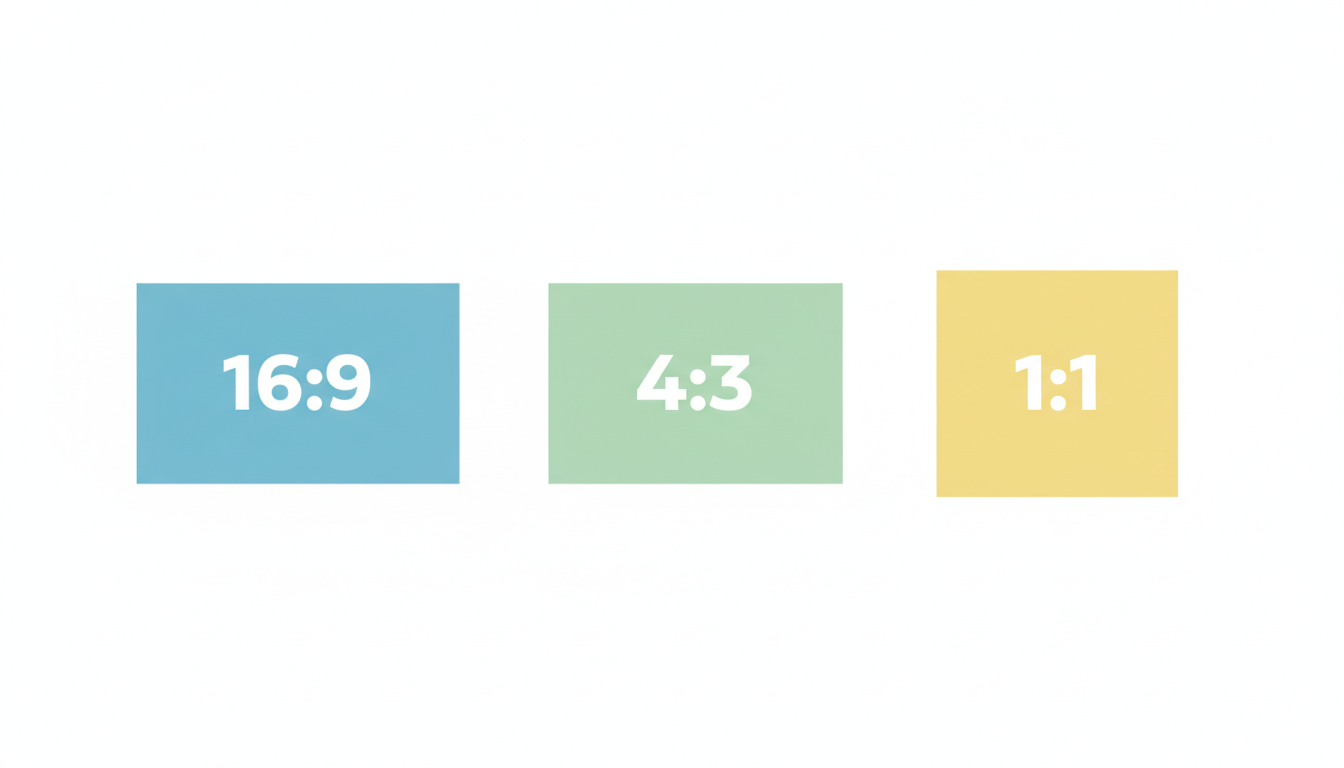
What is Aspect Ratio?
Aspect ratio is the proportional relationship between an image's width and height, expressed as two numbers separated by a colon (x:y). For example, an aspect ratio of 16:9 means that for every 16 units of width, there are 9 units of height.
Aspect ratio is different from resolution, which refers to the total number of pixels in an image (e.g., 1920×1080). While two images can have the same aspect ratio but different resolutions, maintaining the correct aspect ratio is crucial for preventing distortion when resizing or displaying images on different devices.
Why Does Aspect Ratio Matter?
Using the correct aspect ratio is essential for several reasons:
- Visual Consistency: Maintains the intended composition of your images
- Platform Requirements: Different social media platforms and devices have preferred aspect ratios
- Professional Presentation: Ensures your images look polished and professional
- Print Quality: Prevents distortion when printing photos
Common Aspect Ratios and Their Uses
Different aspect ratios serve different purposes. Here are the most common ones:
| Aspect Ratio | Common Uses | Example Resolutions |
|---|---|---|
| 16:9 | Widescreen displays, YouTube, presentations | 1920×1080, 1280×720 |
| 4:3 | Traditional TV, computer monitors, photography | 1024×768, 800×600 |
| 1:1 | Instagram posts, profile pictures, print | 1080×1080, 1200×1200 |
| 3:2 | 35mm photography, DSLR cameras | 3648×2432, 6000×4000 |
| 9:16 | Instagram Stories, TikTok, mobile video | 1080×1920, 720×1280 |
How to Change Aspect Ratio
Changing an image's aspect ratio can be done in several ways, each with different results:
1. Cropping
Cropping removes parts of the image to achieve the desired aspect ratio. This method maintains image quality but may result in losing some content from the original image.

Cropping a 16:9 image to 1:1 removes the side portions
2. Letterboxing/Pillarboxing
This method adds black bars to the sides (pillarboxing) or top/bottom (letterboxing) of an image to fit a different aspect ratio without cropping. This preserves the entire original image but creates empty space.

3. Stretching
Stretching forces an image into a new aspect ratio by distorting it. This method is generally not recommended as it significantly reduces image quality and creates an unnatural appearance.
How to Change Aspect Ratio Using ConvertFoto's Tool
Our free Aspect Ratio Changer Tool makes it easy to adjust your images to any aspect ratio you need. Here's how to use it:
- Upload Your Image: Click the upload area or drag and drop your image file into the designated area.
- Select Aspect Ratio: Choose from preset ratios (16:9, 4:3, 1:1, 3:2, 9:16) or enter custom dimensions.
- Choose Fill Option: Select how to handle the image:
- Crop to Fit: Removes parts of the image to match the new ratio
- Letterbox: Adds black bars to maintain the original image content
- Stretch to Fit: Distorts the image to match the new ratio
- Apply Changes: Click "Apply Aspect Ratio" to process your image.
- Download Result: Preview your image and download it with the new aspect ratio.
Ready to Change Your Image's Aspect Ratio?
Try our free Aspect Ratio Changer Tool now and transform your images in seconds!
Change Aspect Ratio NowAspect Ratios for Different Platforms
Different platforms have optimal aspect ratios for the best user experience:
Social Media
- Instagram Feed: 1:1 (square) or 4:5 (vertical)
- Instagram Stories: 9:16 (vertical)
- Facebook Feed: 16:9 (horizontal) or 1:1 (square)
- Twitter Feed: 16:9 (horizontal) or 2:1 (wide)
- TikTok: 9:16 (vertical)
- YouTube Thumbnail: 16:9 (horizontal)
Print Media
- 4×6 prints: 3:2
- 5×7 prints: 5:7
- 8×10 prints: 4:5
- Standard posters: 2:3
Digital Displays
- Computer monitors: 16:9 or 16:10
- Smartphones: 18:9, 19.5:9, or 20:9
- Tablets: 4:3 or 16:10
- TVs: 16:9
Tips for Working with Aspect Ratios
Here are some professional tips for working with aspect ratios:
- Shoot with the End in Mind: Consider where you'll use the photo when taking it to minimize cropping later.
- Use the Rule of Thirds: This composition technique works well across most aspect ratios.
- Keep Important Elements Central: When shooting for multiple aspect ratios, keep key subjects near the center to avoid cropping them out.
- Check Platform Requirements: Always verify the recommended aspect ratios for the platforms where you'll be sharing your images.
- Maintain Quality: When changing aspect ratios, use high-resolution images to maintain quality after cropping.
Common Aspect Ratio Problems and Solutions
Here are some common issues you might encounter with aspect ratios and how to solve them:
Problem: Images Look Stretched or Distorted
Solution: This happens when an image is forced into an aspect ratio that doesn't match its original proportions. Use cropping or letterboxing instead of stretching to maintain the image's natural appearance.
Problem: Important Content Gets Cropped Out
Solution: When changing aspect ratios, preview the crop to ensure important elements remain visible. If necessary, use letterboxing to preserve the entire image.
Problem: Images Have Black Bars on Sides or Top/Bottom
Solution: This is letterboxing, which occurs when fitting an image into a different aspect ratio without cropping. If you prefer to fill the entire space, choose the crop option instead.
Problem: Images Look Different on Various Devices
Solution: Different devices have different aspect ratios. Consider creating multiple versions of important images or using an aspect ratio that works well across most devices (like 16:9 or 4:3).
Frequently Asked Questions About Aspect Ratios
When you change an aspect ratio by cropping, you're removing pixels, which technically reduces resolution. However, if you start with a high-resolution image, the quality loss may not be noticeable. Letterboxing preserves all pixels but adds empty space. Stretching maintains resolution but distorts the image, which significantly reduces perceived quality.
The best aspect ratio depends on the platform. For Instagram posts, 1:1 (square) or 4:5 (vertical) work well. For Instagram Stories and TikTok, use 9:16 (vertical). For Facebook and Twitter, 16:9 (horizontal) is optimal. Always check the current recommendations as platforms sometimes update their preferred dimensions.
To find your image's aspect ratio, check its dimensions (width × height) in pixels, then simplify the ratio. For example, an image that's 1920×1080 pixels has an aspect ratio of 16:9 (1920÷120 = 16, 1080÷120 = 9). Most image editing software and file properties will show you the dimensions.
Yes! Our Aspect Ratio Changer Tool allows you to create custom aspect ratios by entering specific width and height dimensions. This is useful for unique display requirements or artistic projects.
For standard photo prints, use these aspect ratios: 3:2 for 4×6 prints, 5:7 for 5×7 prints, and 4:5 for 8×10 prints. If you're planning to print photos, it's best to shoot with these aspect ratios in mind or crop accordingly before printing to avoid unexpected results.
Conclusion
Understanding and properly using aspect ratios is essential for anyone working with digital images. Whether you're sharing photos on social media, creating content for a website, or printing images, using the correct aspect ratio ensures your images look their best.
With our free Aspect Ratio Changer Tool, you can easily adjust your images to any aspect ratio you need. Whether you prefer cropping, letterboxing, or stretching, our tool makes the process simple and efficient.
Try Our Aspect Ratio Changer Tool Today
Transform your images to the perfect aspect ratio for any platform or purpose with our free, easy-to-use tool.
Change Aspect Ratio Now